
Getting started as an admin
You bought Roost for your organization and you are the first admin. This page is the short version: what to do first, where the tools are, and what your families see. Everything here links to a fuller explanation in How Roost works.
1. Your first week, in order
You do not need to do all of this at once, and nothing here is irreversible. This is simply the order that causes the least rework.
- Sign in and accept the terms. The first time you sign in you will be asked to confirm the Terms and Privacy Policy. That confirmation is what records your organization's agreement, so it should be done by whoever is authorized to sign for the organization.
- Check your organization details. Name, district, address, and logo. Your logo appears at the top of the directory and in the emails your families receive.
- Decide your sharing default before anyone is added. This is the single most consequential setting — see section 5.
- Import your roster. A spreadsheet of students and their guardians. You will see exactly what will change before anything is applied.
- Add your board. Give the people who help run the organization their own accounts instead of sharing one login.
- Tell your families. Once the roster looks right, send the first message.
2. Where the admin tools live
Roost looks the same to you as it does to a parent, with one addition: the menu. Everything an admin can do is behind the ☰ menu in the top left. If you are hunting for a feature, it is in there.
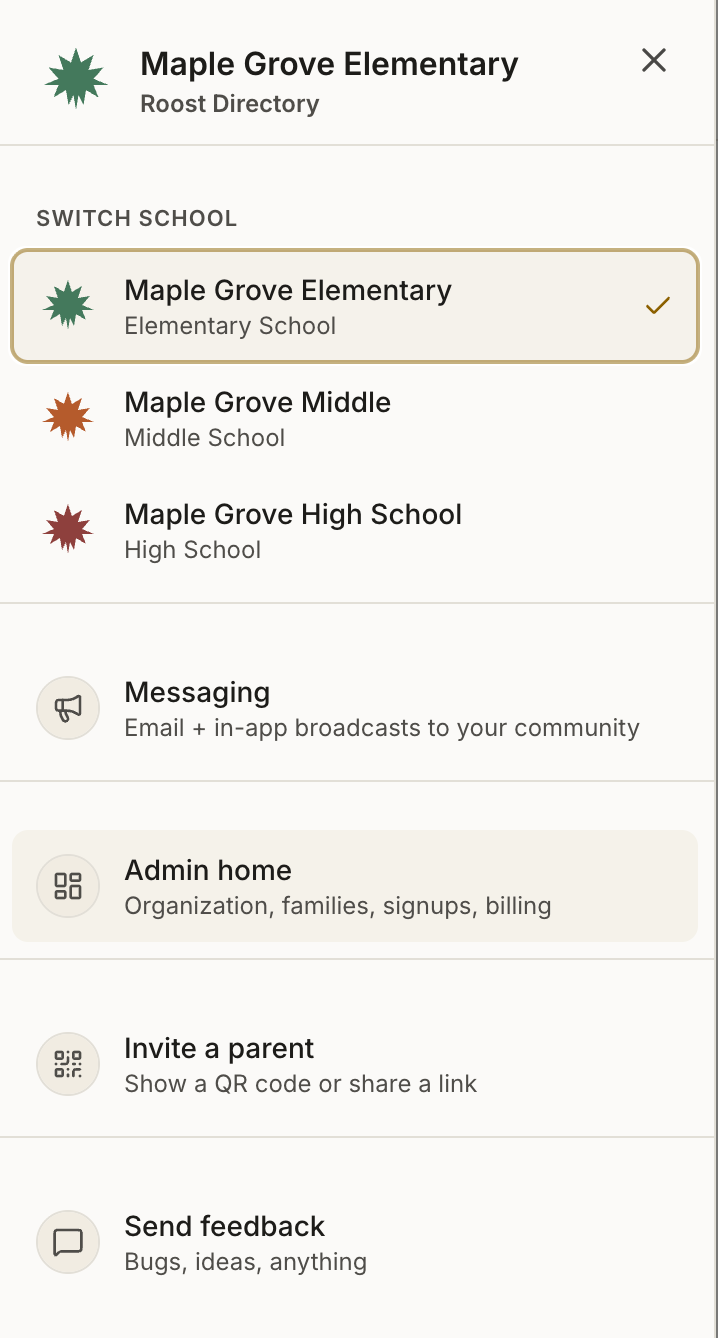
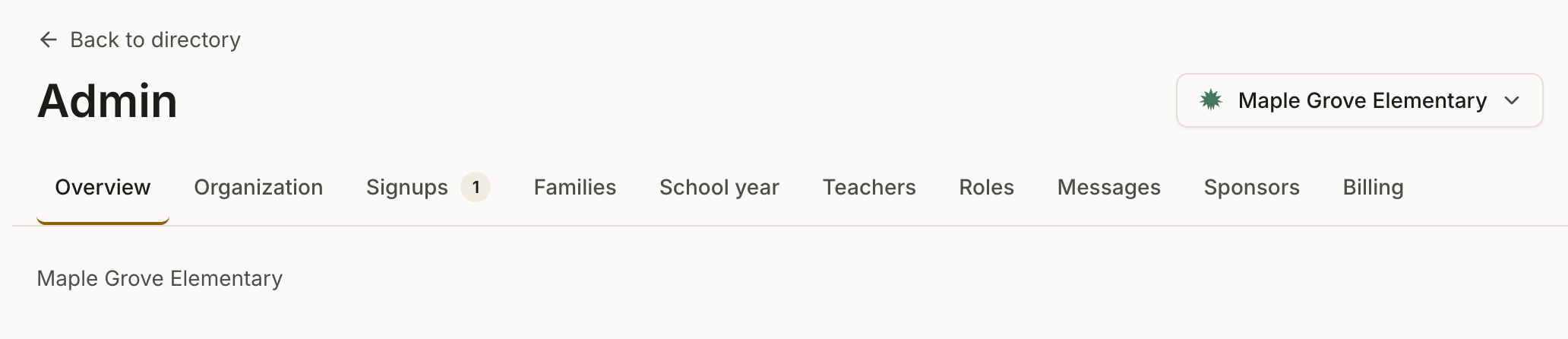
Admin home opens a row of tabs. Two other menu entries are worth knowing now: Invite a parent, which gives you a QR code or a link to hand out at an event, and Send feedback, which comes straight to us. If your organization has more than one school, the switcher at the top of the menu is how you move between them.
- Overview — what needs your attention.
- Organization — your details, sharing default, and connections to other schools in your district.
- Signups — people asking to join who are not on the roster.
- Families — browse and edit everyone. This is where you fix a typo or add someone.
- School year — roster import, moving everyone up a grade, and transfers between schools.
- Teachers — the teacher list families see on class and grade pages.
- Roles — who has admin or board access.
- Messages — email your families.
- Sponsors — local businesses your organization wants to credit.
- Billing — your subscription and renewal.
Roost works on a phone, including the admin screens. Most admins do the roster import on a laptop and everything else from wherever they are.
3. Who can do what
Roost replaces the shared-admin-password habit with real individual accounts, so you can see who did what and remove someone cleanly when they roll off the board.
| Role | Can see | Can change |
|---|---|---|
| Admin | Every family at your organization, including contact details | Everything — roster, families, roles, messages, billing |
| Board member | Every family who is in the directory, so they can email a grade or class | Nothing about other people. Their own profile only |
| Parent / guardian | Families who have chosen to appear, per their own settings | Their own household and children |
A board member signing in sees a deliberately short version of the admin area — Overview and Messages only. That is not a mistake; it is the point. They get what they need to organize without being able to change anyone's data.
Full detail, including district admin and teacher accounts, is in How Roost works §12.
4. Adding people
There are three ways in, and picking the right one saves a lot of confusion.
- Families with children here — a roster import, or one at a time under Families → Add a family. A parent's place in the directory comes from their child, so the child is what connects them to your organization.
- Someone with no children here — a principal, office manager, coach, or board helper. Use Families → Add a family, then switch to “Adult, no children”. You can grant their role on the same screen — and you should, because the role is what connects them to your organization. Without one they will not show up in the directory or in your admin lists. This path is easy to miss: the Roles tab can only give a role to someone already in Roost, so a brand-new person starts here.
- People who find you themselves — they request access and appear under Signups for you to approve.
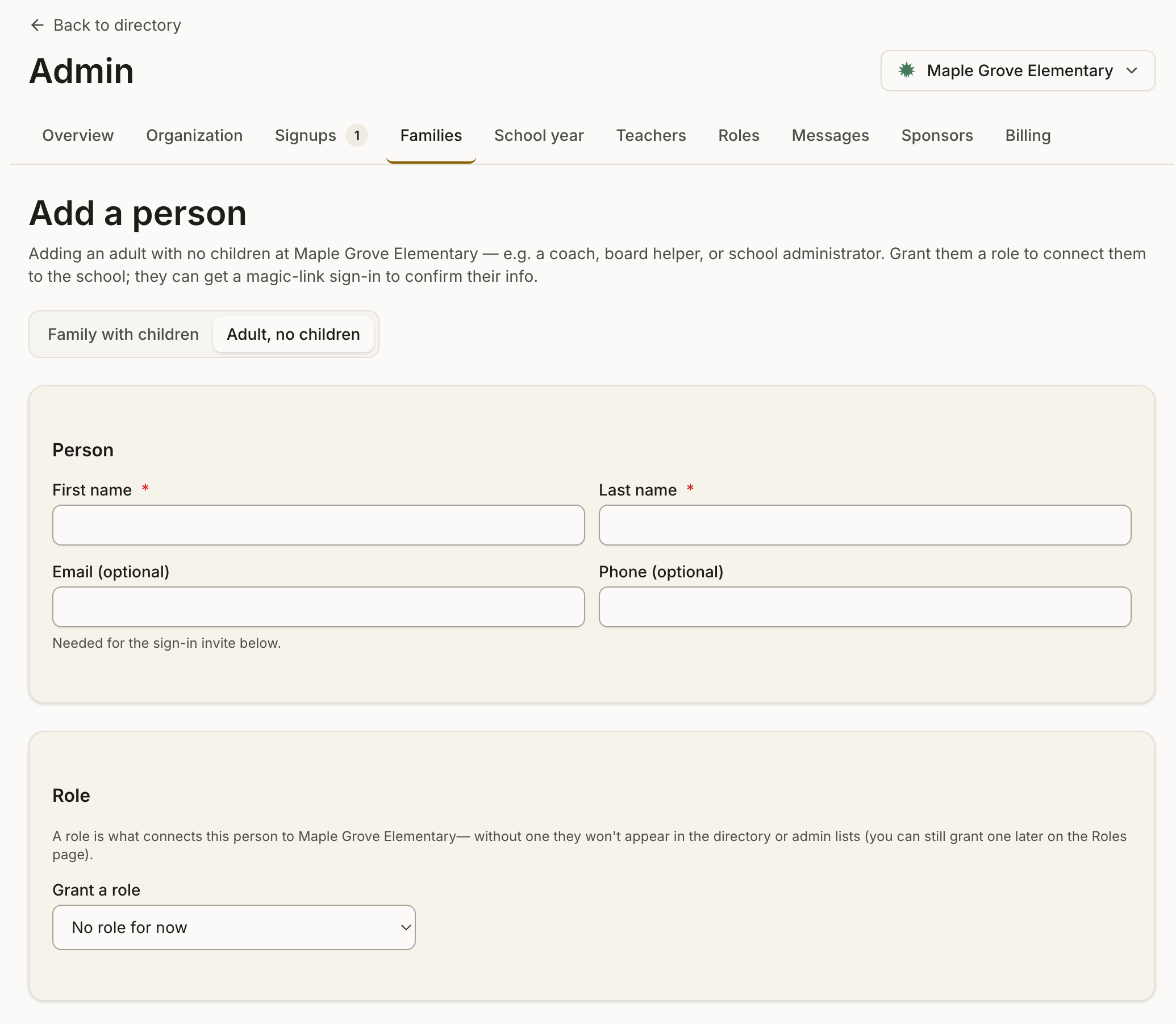
Once someone exists in Roost, the Roles tab is where you grant or remove admin and board access. Every grant is recorded with who did it and when.
5. What your families see
Under Organization, Default visibility for new families is how you choose the way families start out. This is worth getting right before you import, because it decides whether your directory looks full or empty on day one.
- Visible — families appear in the directory as soon as they are added. Each family can still hide themselves at any time. Choose this if your organization has always published a directory and families expect to be in it.
- Private — nobody appears until they sign in and choose to. Choose this if your organization has committed to opt-in. Expect the directory to fill up gradually rather than all at once.
Either way, every family is asked to confirm their own choice the first time they sign in, and can change it whenever they like. A family is never stuck with what you picked.
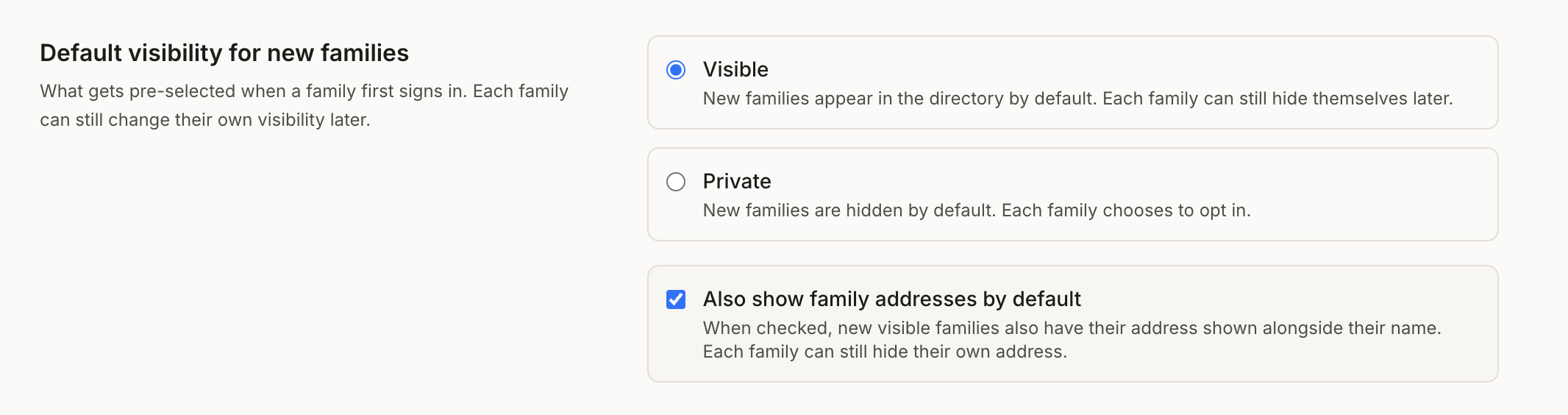
Addresses, phone numbers, and email each have their own switch, so a family can be listed without publishing everything. The full model — including how a family limits themselves to just their child's class — is in How Roost works §1–2.
6. Reaching your families
Messages sends email to everyone, a single grade, a class, or a group. It goes out from your organization, and replies come back to you.
Two things worth knowing before your first send: anyone who has unsubscribed is skipped automatically, and every send is saved so you can see what went out and to whom. Details in How Roost works §13.
7. When something looks wrong
Some things that look like problems are not:
- A family appears twice. Usually two records that should be one. Open either from Families and merge them — nothing is lost.
- A student has no teacher. Normal before the official roster arrives. Families can set it themselves from their profile.
- Someone is missing from the directory. Check whether they are set to Private — they are in your Families list either way, just not visible to other families.
If something still looks wrong, email support@roost.directory with what you expected and what you saw. Do not paste family details into the email — the organization name and the screen you were on is enough to find it.